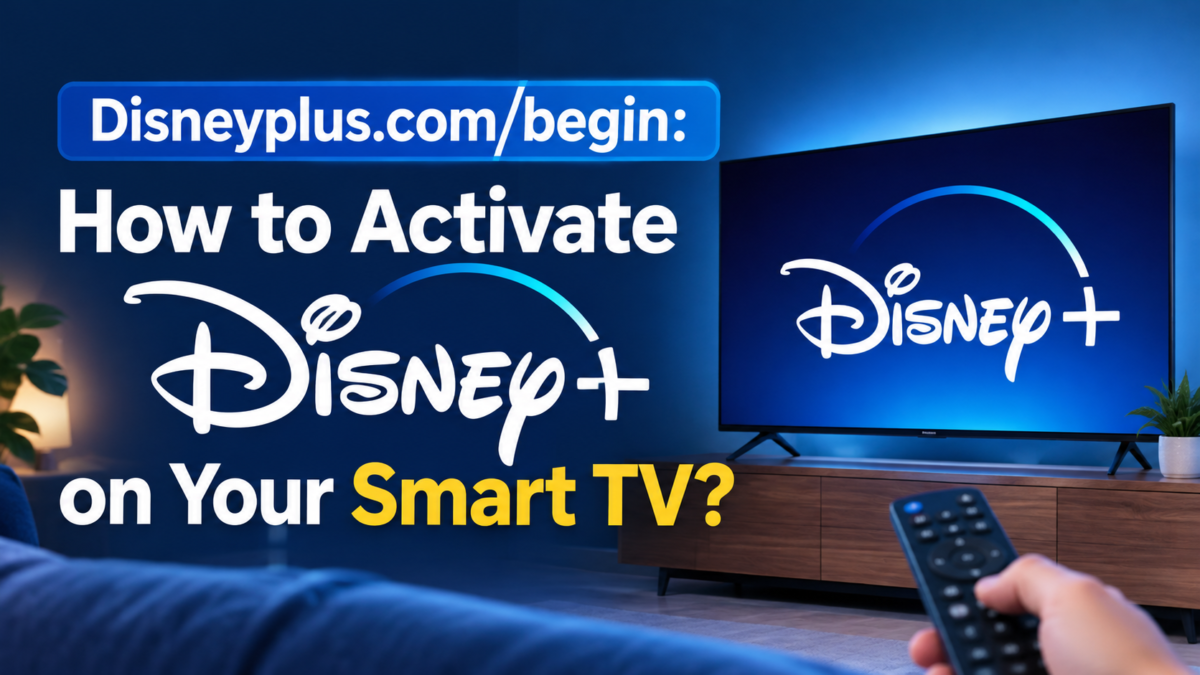
To activate Disney+ on a smart TV, open the Disney+ app, choose Log In, then use a phone or computer to enter the on screen code at Disneyplus.com/begin. Sign in with the Disney account connected to an active subscription. Your TV should refresh once the code is accepted.
The activation page connects your TV app to your Disney account. It does not create an account or replace a subscription. The code and available login options can vary by device, app version, and region, so follow the instructions displayed in the official Disney+ app.
If you are comparing IPTV service providers online, keep the services separate: Hyperview TV and Disney+ have different account and activation processes. A Disney+ code connects only the Disney+ app to a Disney account. Review any IPTV plan details separately rather than assuming it includes Disney+ access.
What Is Disneyplus.com/begin and How Does It Work?
Disneyplus.com/begin is a page used to link a supported TV or streaming device to a Disney+ account. Instead of typing account details with a TV remote, you can use a phone or computer to complete the connection.
The Disney+ app displays a temporary code on the TV. After you sign in on the activation page and submit that code, Disney+ associates the device with your account. The code is for device activation, not a substitute for your password or subscription.
Requirements Before Activating Disney+ on Your TV
Before starting the setup process, preparing your home network and account credentials prevents unnecessary interruptions. Much like configuring premium live streaming services through HyperView TV, having a solid technical foundation ensures immediate, high definition playback from the very first click.
Pre Activation Checklist Section
- Active Account Credentials: Verify that your email address, password, and monthly or annual billing status are completely current.
- Supported Smart Television or Streaming Box: Confirm that your hardware meets the minimum operating system requirements to run the latest application version.
- High Speed Internet Connection: Connect your television to a stable wireless network or plug in an Ethernet cable providing at least 25 Mbps for smooth 4K Ultra HD streaming.
- Updated Application Software: Visit your device application store to ensure you have downloaded the newest software build.
- Secondary Web Enabled Device: Keep a smartphone, tablet, laptop, or desktop computer nearby with an updated internet browser like Chrome, Safari, Firefox, or Edge.
- Disabled Virtual Private Networks: Turn off any active proxy servers or routing masks on both your router and mobile phone so your geographical location matches properly.
How to Activate Disney+ Using Disneyplus.com/begin
Activating your streaming application through the web portal is designed to take less than two minutes from start to finish. The process relies on syncing your local television software with your cloud account profile over the internet.
First, ensure both your television and your secondary mobile device are connected to a reliable internet source. Launch the streaming app on your television and navigate to the login prompt to trigger the unique activation screen.
Keep the television turned on and remaining on that exact screen while you grab your smartphone or computer. Leaving the screen or closing the application will immediately invalidate the displayed digits, forcing you to restart the sequence from the beginning.
Step-by-Step Guide to Enter Your 8-Digit Disney+ Activation Code
Following a structured sequence guarantees that your activation code is accepted on the very first attempt. Use these detailed step by step guidelines to complete your television setup without triggering timeout errors.
Step by Step Guidelines
- Power On and Launch: Turn on your smart television or streaming media player and open the freshly installed Disney+ application from your home menu.
- Select the Login Button: Highlight and click the Log In button displayed prominently on the welcome screen using your remote control.
- Locate Your Unique Code: Wait a brief moment for an eight digit numerical code to appear in the center of your television display.
- Open a Secondary Browser: Unlock your smartphone, tablet, or computer and launch any standard web browser.
- Visit the Official Portal: Type the exact activation URL into the top address bar rather than a search engine box and press Enter to load the page.
- Input the Eight Digits: Carefully type the eight numbers shown on your television into the designated input boxes on your mobile screen and select Continue.
- Authenticate Your Profile: Enter your registered email address and account password when prompted by the browser, then click the Log In button.
- Confirm Screen Refresh: Look back at your television monitor, which will automatically update to display a confirmation message followed by your user profiles.
How to Log In to Disney+ on a Smart TV
While the eight digit activation portal is the fastest authentication route, many smart televisions also allow direct credential entry. Depending on your specific hardware manufacturer and software version, you may see an option to type your email and password directly using the virtual onscreen keyboard.
To use direct login, launch the application and choose Log In. If your television redirects immediately to the eight digit code screen, look near the bottom for an alternative link that reads Log In With Email or Try Another Way.
Selecting that alternative brings up a digital keyboard where you can navigate letter by letter using your remote directional pad. However, for users who frequently switch between multiple platforms or manage versatile entertainment setups alongside IPTV applications, the web browser code method remains far faster and much less prone to typographical mistakes.
How to Activate Disney+ on Samsung Smart TVs
Samsung smart televisions running the Tizen operating system version 2016 or newer support native installation of the streaming platform. Before you can enter an activation code, you must acquire the application from the integrated Samsung Smart Hub.
Press the Home button on your Samsung remote and navigate left to the Search magnifying glass icon. Type the application name, select it from the results, and choose Download to install it onto your internal memory.
Once installed, open the app and click Log In to display your eight digit code. Open your smartphone browser, visit the activation website, input the displayed numbers, and sign in with your account details to unlock instant playback on your Samsung display.
How to Activate Disney+ on LG Smart TVs
LG televisions powered by webOS 3.0 and later versions provide smooth compatibility with high definition streaming applications. Utilizing the LG Magic Remote makes navigating the initial setup menu remarkably quick and intuitive.
Press the Home button on your LG remote to open the bottom launcher bar and select the LG Content Store icon. Search for the streaming application, press Install, and launch the software directly once the download completes.
Select Log In on the main welcome interface to generate your unique eight digit registration sequence. Grab your computer or mobile phone, load the official activation portal, enter the code, and enter your password to link your LG television permanently.
How to Activate Disney+ on Roku Devices
Roku streaming sticks, boxes, and Roku OS integrated televisions represent some of the most popular hardware choices for modern cord cutters. Adding the channel to your Roku interface requires an active Roku user account linked to your hardware.
Press the Home button on your Roku remote and scroll down to select Streaming Channels to open the Channel Store. Search for the app, click Add Channel, and return to your main home grid once the tile appears.
Open the channel and click Log In to reveal the eight digit activation token on your television screen. Navigate to the activation webpage on your mobile device, submit the numbers, and complete the browser authentication to start watching on your Roku player.
How to Activate Disney+ on Amazon Fire TV and Fire Stick
Amazon Fire TV Stick models, Fire TV Cubes, and Fire Edition televisions are powerhouse devices in the streaming world. In fact, the Fire Stick is widely considered the ultimate hardware choice for users who combine studio apps with comprehensive live channel applications from HyperView TV.
From the Fire TV home screen, highlight the Find or Appstore icon and search for the streaming application. Click Get or Download to install the software, then press the menu button to launch it immediately.
Click Log In on the welcome banner to generate your eight digit activation code. Open a web browser on your phone, navigate to the official begin portal, type in the eight digits, and sign in with your credentials to authorize your Amazon Fire device.
How to Activate Disney+ on Apple TV and Android TV
Both Apple TV hardware and Android TV systems offer flagship performance for home theater enthusiasts. Whether you own a fourth generation Apple TV HD, an Apple TV 4K, or an Android TV unit from Sony, Hisense, TCL, or Nvidia Shield, the activation routine remains unified.
For Apple TV users, open the tvOS App Store, download the application, and launch it to view your eight digit code. If you use an iPhone or iPad on the same wireless network, Apple also lets you expedite typing using the integrated remote keyboard notification.
For Android TV and Google TV devices, open the Google Play Store from the top navigation tab and install the app. Launch the software, select Log In, and enter the resulting eight digit code into your mobile browser at the official activation link to complete registration.
How to Activate Disney+ on PlayStation and Xbox Consoles
Gaming consoles serve as exceptional all in one multimedia hubs capable of delivering crisp 4K video and immersive surround sound. Both Sony PlayStation and Microsoft Xbox platforms feature dedicated media sections separate from your gaming library.
On a PlayStation 4 or PlayStation 5, switch to the Media tab at the top of the home dashboard, go to All Apps, and download the streaming client. Launch the software and select Log In to summon the eight digit activation screen.
On an Xbox One, Xbox Series X, or Xbox Series S, open the Microsoft Store, search for the application, and select Get. After launching the app and receiving your eight digit code, use your smartphone browser to visit the verification portal, input the digits, and link your gaming console to your entertainment profile.
How to Activate Disney+ Using a QR Code
Many modern smart televisions and updated streaming sticks now display a scannable QR code right beside the traditional eight digit numerical sequence. This feature streamlines the activation process even further by eliminating the need to type the web address or the eight digits manually.
When you select Log In on your television screen and see the square matrix barcode on the left or right side, simply pick up your smartphone or tablet. Open your default camera application and point the lens steady at the television screen.
A notification banner will immediately pop up on your phone screen displaying a direct link to the authentication server. Tap that notification banner, and your mobile browser will open with the device code already populated, requiring you only to tap Log In and confirm your password.
How to Fix Disneyplus.com/begin Not Working
Occasionally, users encounter a blank screen, an unresponsive button, or a page load failure when trying to access the activation portal. Resolving these hiccups usually comes down to clearing browser conflicts or stabilizing your local network connection.
First, clear the browser cache and cookies on your smartphone or computer, or simply open a private Incognito window and load the URL again. Stored browser data from older sessions frequently interferes with the security token scripts running on the activation page.
Second, ensure that your television and your smartphone are connected to the exact same home wireless network with all VPN software turned off. Just as a clean, unthrottled internet connection guarantees flawless live streaming on HyperView TV, removing network proxies ensures the activation server recognizes your hardware instantly.
Common Disney+ Activation Code Errors and Their Solutions
When linking your hardware, specific error messages or screen behaviors can halt your progress. Understanding what causes each warning helps you apply the right fix without wasting time calling technical support.
Wrapping up
Completing your smart television setup through the official activation portal guarantees quick and secure access to your favorite movies and original series. By following the eight digit code verification process and maintaining a stable internet connection, you can bypass tedious remote typing and resolve common login errors effortlessly. To transform your living room into the ultimate entertainment hub, pair your mainstream streaming apps with a premium live channel subscription from HyperView TV and enjoy endless high definition viewing.
Frequently Asked Questions
Where do I find the Disney+ activation code?
Open the Disney+ app on your TV, select Log In, and follow the prompt. The app will display a code if that login method is available.
How long does a Disney+ activation code last?
Codes are temporary and expire. If the code is rejected, return to the TV app and request a new one.
Can I activate Disney+ without a subscription?
You may be able to connect an account, but an eligible active subscription is required to watch Disney+ content.