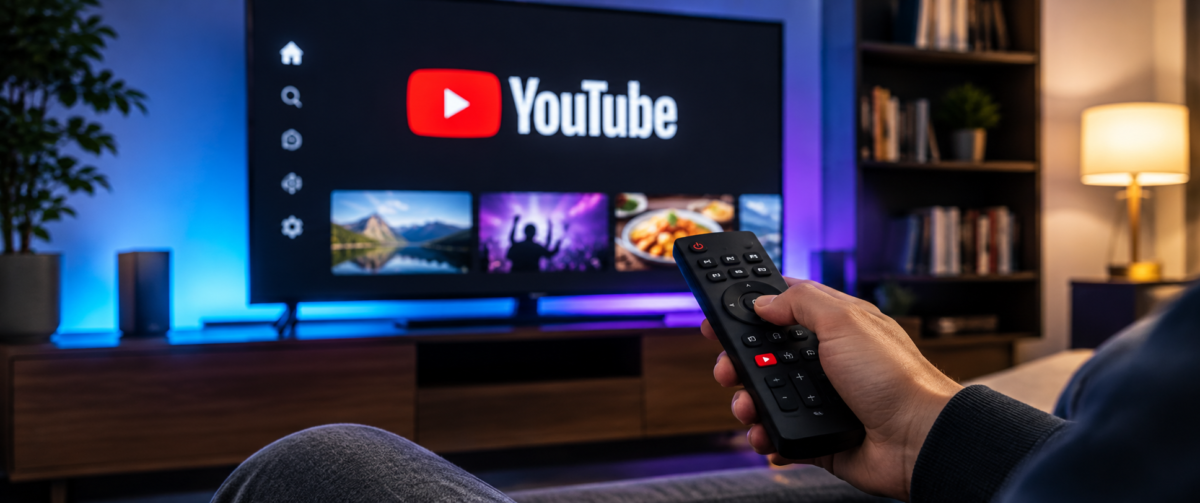
To activate YouTube on your smart TV, open YouTube, select Sign in and follow the prompt to link tv.youtube.com/start your Google Account. If a code appears, use your phone or computer to enter it at the address on the television.
This HyperView TV guide covers the app built into your television and the version installed on a streaming stick or box. If you have both, start on the device you normally watch. Each copy of YouTube can have a different profile.
The address tv.youtube.com/start is for YouTube TV, a separate subscription service available in the United States. In the UK, signing in to standard YouTube is free. You do not need a television package or YouTube Premium to see your subscribed channels and saved playlists.
How to Find the YouTube App on Your Television
Press Home on the television remote, open Apps or the app store and search for YouTube. Choose the standard app with the red play symbol rather than YouTube Kids or YouTube Music. Select Open if it is already installed.
If your search returns programme times and live channels, you are probably looking inside the programme guide. Return to the device’s apps menu instead.
Steps to Get the YouTube Activation Code
Open YouTube and look for Sign in in the side menu or on the Who’s watching? screen. If another household member is already signed in, open the profile menu and select Add account. You do not need to remove their profile.
Choose the option to use a phone or web browser. The television may display an activation code, a QR code or both. Leave this screen open while you continue on your other device. The code is generated for this session, not supplied with the television.
Link with TV code is a different option in YouTube settings. Its numerical code pairs a mobile with the television for playback controls. It will not sign your Google Account in on the TV.
How to Activate YouTube Using YouTube Activate
If the television displays youtube.com/activate, type that address into the browser on your phone or computer. Some app versions display a different official address. Follow the one inside the app rather than choosing an activation service from search results. Enter the characters shown on the television. Google may ask you to sign in before or after this step.
Check the email address and read the approval request before confirming that you want to connect YouTube on the TV. Wait for the television to leave the code screen. You do not need to ring a helpline, supply card details or pay an activation fee. If a page makes payment a condition of signing in, close it and check the address again.
Linking Your Google Account to Your Smart TV
The profile you approve determines which playlists, subscriptions and viewing history appear. If a shared browser suggests somebody else’s email address, select Use another account. There is no need to change the main account registered to the television.
If you manage more than one YouTube channel, Google may offer a channel choice after you select your email. Match the name or handle to the one you use on your mobile. Choosing a different channel can make your library look empty.
To confirm the link, open Watch Later and look for a video you deliberately saved. This is a better test than recognising a recommendation, since popular videos can appear on the home screen even when nobody is signed in.
Activating YouTube Through Your Mobile Phone
If your TV offers Sign in with your phone, connect the mobile to the same home network and open its YouTube app. Follow the prompt for the television you are setting up. Check the device name if there is another set nearby.
For a QR code, open your mobile camera and point it at the square on YouTube’s account screen. Tap the address preview and complete the Google prompt. Use the square displayed by the app, not one appearing inside a video or advert.
Your mobile browser can have a different Google Account open from the YouTube app. When scanning takes you into the browser, check the email shown there before approving the connection.
Key Takeaways Summary
Start on the television.
The YouTube app generates the activation code. Your phone, tablet or computer is where you enter it.
Check the channel as well as the email address.
One Google Account can manage several YouTube channels, each with its own library.
Know when to use Guest.
A visitor can watch public videos without adding an account. Switching to Guest afterwards, however, does not remove a profile already saved on the set.
What You Need Before Activating YouTube on Your Smart TV
Preparation Checklist
☐ A television or streaming player that supports the official YouTube app
☐ An internet connection on the device that will play your videos
☐ The remote that controls that device’s menus
☐ Access to your Google Account and any verification prompt it requires
☐ A phone, tablet or computer if you prefer not to type with the remote
Before you begin, open Subscriptions in YouTube on your mobile. If you recognise the channels, note the name beneath your profile picture. This gives you something to check against later, particularly if your browser usually opens with a work account.
How to Sign In Without an Activation Code
Choose Sign in with your remote if your model offers it. Enter your Google Account details using the television keyboard and complete any identity check. On Google TV, YouTube may instead let you select a profile already registered on the device.
| Method | What it uses | When to choose it |
|---|---|---|
| Browser code | The code on the television and a separate browser | Your mobile cannot discover the TV |
| Mobile prompt | The YouTube app on your phone | Both devices are on your home network |
| Remote | The television keyboard or a recognised Google profile | You prefer to complete setup on the set |
| Guest viewing | No personal account | A visitor wants to play a video without opening your library |
Fixing Common YouTube Activation Problems
The app will not load.
Test another streaming app on the same device. If both fail, check the network connection in Settings. If YouTube plays a video in Guest mode, concentrate on the account prompt rather than resetting your router.
The phone cannot find the TV.
A guest wireless network can keep devices apart even when both have internet access. Use your main home network. On an iPhone, check that YouTube has permission to use the local network.
A work or school account is refused.
Your organisation may restrict access to YouTube. On your own television, try your personal Google Account. On a managed set, check with the administrator before changing device settings.
What to Do When the Activation Code Does Not Work
For an expired code, return to Sign in on the television and choose the browser option again. Enter the newest code while it is visible. Refreshing the page on your phone does not renew a code that the TV has replaced.
For an invalid code, compare the browser address with the one on the television, then read back the characters in order. If you are setting up two rooms, finish one television before requesting a code on the other.
If Google reports success but the television still shows the code, wait briefly. Reopen YouTube’s profile menu and look for your account before starting another request.
How to Update the YouTube App on Your Smart TV
Open the app store on the device running YouTube and find its listing. Select Update if offered. On Google TV, available updates can also appear under Manage apps and games in the Google Play Store.
On Samsung sets, look for Auto update in Apps settings. On LG models, check the YouTube listing in Apps or LG Content Store. Roku users can check both apps and system software under Settings, System and Software update.
If you watch through a stick, update the stick rather than the television. Restart the device after installation and reopen YouTube. Avoid a factory reset as a first step because it can erase settings for your other streaming services.
Keeping Your YouTube Account Secure on Shared TVs
Before leaving a holiday let, open your profile inside YouTube and choose Sign out or Remove account. Select your own profile, not the owner’s. Closing the app or switching off the television does not reliably end your session.
If you have already left, open your Google Account on another device. Under Security, find Your devices, then Manage all devices. Select the relevant television or player and choose Sign out. Check for additional sessions bearing the same device name.
For a family television, look for Parent code in YouTube settings. Where available, it can restrict access to adult profiles and viewing while signed out. This household control is separate from the temporary activation code.
Final Thoughts
The simplest check is a familiar playlist: if it opens under the correct channel name, activation is complete. If it is missing, check the selected profile before reinstalling anything. That distinction can save you from changing a streaming setup that already works.