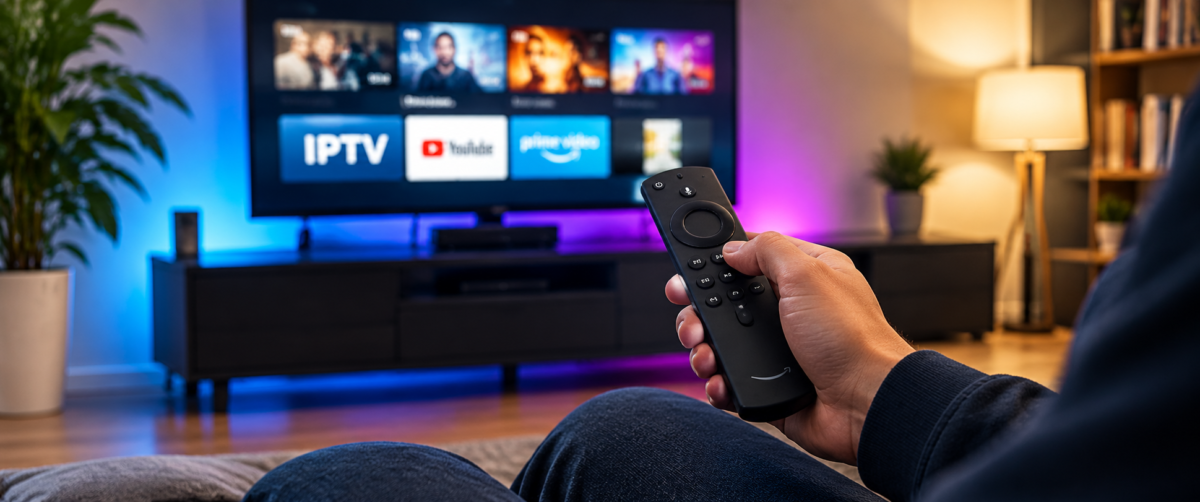
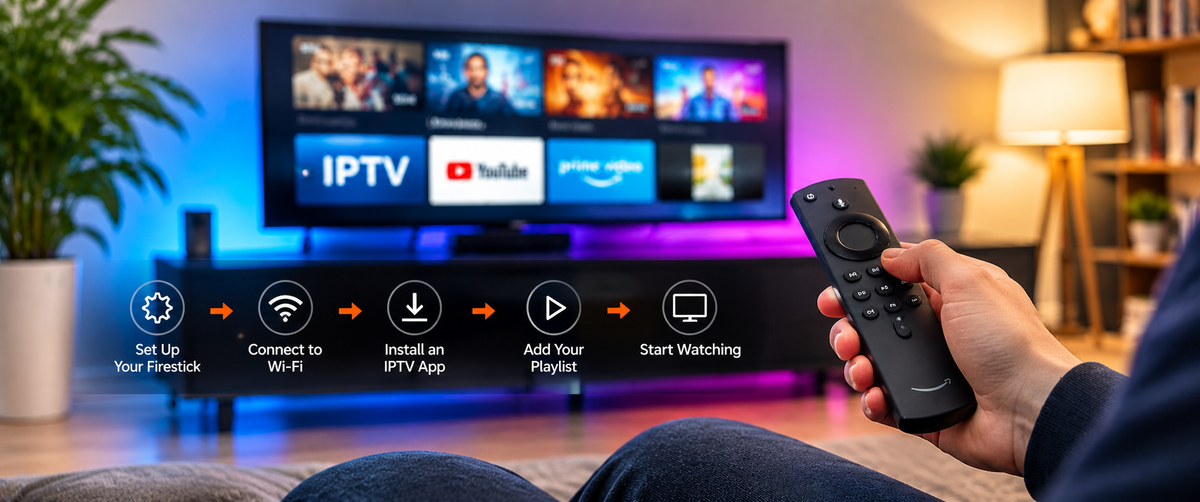
How to Watch IPTV on Amazon Firestick starts with a compatible Amazon Fire TV device, a reliable internet connection and an active subscription for content you are authorised to watch. Install a suitable IPTV player, enter the details supplied with your service, then test a live channel before organising your viewing.
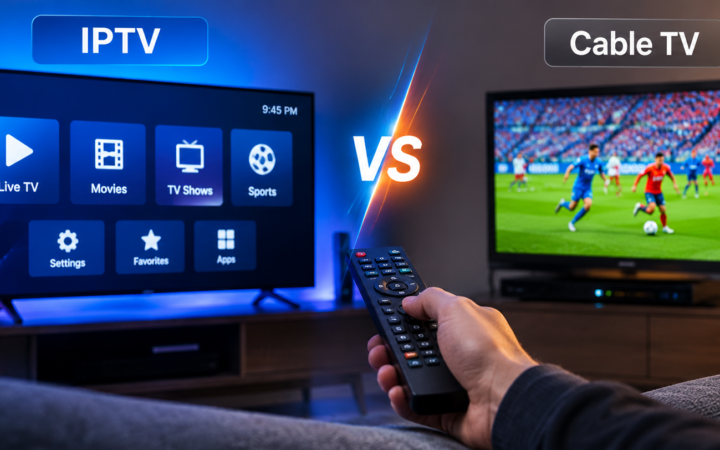
IPTV delivers television over the internet rather than through a traditional aerial or satellite signal. The player provides the viewing interface, while your subscription determines which channels and on demand programmes are available. Installing a player alone does not provide a channel service.
Before setup, check whether your plan uses its own Fire TV app, an M3U playlist or Xtream Codes. IPTV Service Providers can differ in their supported apps and login formats, so follow the setup information supplied with your Hyperview TV account rather than guessing or reusing another service’s details.
Key Takeaways Summary
Check compatibility first. Your Firestick model, Fire OS version and chosen player must work with your subscription.
Use the login method provided. Enter only the M3U playlist or Xtream Codes details supplied for your account.
Protect your access details. Treat playlist URLs, usernames and passwords as private account information.
Test before settling in. Check a live channel, the programme guide and on demand playback, then adjust your network or app settings if needed.
Check Firestick Compatibility Before Getting Started
Most Amazon Fire TV devices can run video applications, but available apps and playback features may vary by model and Fire OS version. Check that your Firestick has enough free storage, receives software updates and supports the player recommended for your subscription.
If you are setting up Hyperview TV, review the instructions supplied with your plan before choosing an app. Confirm that the recommended player works on Fire TV and that your subscription provides a login method the player accepts.
Prepare Your Amazon Firestick for IPTV Setup
Update the Firestick before installing a new app. Open Settings and look under My Fire TV or Device and Software for the About and Check for Updates options. Menu wording can vary between models, so use the closest available option.
Check that there is space for the player and its data. You can review installed apps in the Firestick settings and remove apps you no longer use. Restart the device after an update, and keep your subscription details somewhere private so you can enter them accurately.
Connect Firestick to a Stable Internet Network
A steady connection is more useful than a high speed result that fluctuates. Place the Firestick where it receives a strong wireless signal, and test playback at the time you normally watch. Other household activity, such as large downloads or several video streams, can affect available bandwidth.
Use your service’s stated speed guidance, especially for high definition or 4K playback. If streams pause, test the connection near the Firestick and check whether other devices are using the network heavily.
Enable the Required App Installation Settings
If the IPTV app is available in the Amazon Appstore, you usually do not need to change installation settings. Search for the app by its exact name and check that the publisher is the one recommended by the service or app developer. Some apps may be installed from an official source outside the Appstore.
Only do this when the provider gives clear instructions and you can verify the source. On many Fire OS versions, the permission is under Settings, My Fire TV, Developer options, then Install unknown apps. Allow access only for the installer you trust, and turn it off again when installation is complete.
Download a Trusted IPTV Player
Choose a player that supports Fire TV and the login format supplied with your subscription. Check the app name and publisher carefully, as similar names can make it easy to select the wrong application.
An IPTV player is a viewing tool, not a subscription. It does not create channels or grant access to content. Use a provider’s own app if one is supplied, or select a reputable player that accepts your account format.
Troubleshoot Common IPTV Setup Problems
Most Firestick IPTV problems have simple causes, such as a weak WiFi signal, an incorrect password or a full app cache. Work through the likely causes one at a time rather than reinstalling everything at once.
Constant buffering: Move closer to the router, switch WiFi band, restart the router or use a wired Ethernet adaptor. Also pause large downloads on other devices.
Black screen with sound: Change the player decoder, check the HDMI connection and test another channel. Restart the player before restarting the Firestick.
Login failed message: Enter your username and password again slowly. Check capital letters, remove accidental spaces and confirm that your Hyperview TV subscription is still active.
Install and Launch Your IPTV Application
Select the app from your Firestick’s Apps section and follow the on screen prompts. Allow only permissions that make sense for the app’s functions. A player may need internet access, but a request for unrelated access is a reason to check the publisher and app details before continuing.
On first launch, choose the option to add a service or playlist. The wording differs between apps. Keep the player open while you enter your details, and note any error message rather than repeatedly submitting information that may be incorrect.
Add Your IPTV Subscription Details
Use the account information provided for your subscription. Depending on the service and player, you may need a playlist address, a server address, a username and a password. Enter each item carefully, including punctuation and capital letters where relevant.
If you are using Hyperview TV, follow the setup information provided with your account and select only a login method that is listed there. Do not share your credentials in public posts, screenshots or messages to people you do not trust. If a password or address is rejected.
Configure M3U Playlists or Xtream Codes
Xtream Codes is usually the simpler option for Hyperview TV customers. In your player, select the Xtream Codes login option, enter a profile name such as Hyperview TV, then add the username, password and server address supplied to you.
Select Add User or Login and wait while the app verifies your account and downloads the playlist. Live channels usually appear first, followed by films, series and programme guide information.
With an M3U setup, choose Add Playlist and paste your complete playlist link into the correct field. Give the playlist a recognisable name. If a separate programme guide link is supplied, enter it in the EPG field provided by the player.
Organise Live TV Channels and Categories
Once your playlist loads, browse the live television categories to confirm that channels are displayed correctly. Hyperview TV categories help you move quickly between entertainment, sport, news, films, documentaries, children’s content and international viewing where included in your plan.
Hide categories you never use if your player supports group management. This makes the home screen cleaner and helps family members find the content they enjoy without scrolling through hundreds of unfamiliar channels.
Use the search function for specific channels, programmes or presenters where supported. You can also sort favourites into your preferred order in many advanced players, placing your most watched channels at the top.
Explore Movies and On-Demand Content
Your player may show separate sections for live television, movies and series. The movies library is where you will find on demand films, while the series section organises programmes into seasons and individual episodes.
Use genre filters to browse action, comedy, drama, family titles and more. Many players also let you search by title, view a synopsis and check available audio or subtitle options before you start watching.
Select the subtitle icon or audio option during playback if alternative languages are available for that title. Availability depends on the content itself, and not every film or episode includes the same subtitle choices.
Adjust Streaming Settings for Better Playback
Start with automatic video resolution so the Firestick can match your television and broadband speed. On the Firestick, open Settings, select Display and Sounds, then choose Display and confirm that Video Resolution is set to Auto.
If your player offers decoder options, hardware decoding is usually the best starting point for Firestick. If you experience picture freezing or sound falling out of sync, try the alternative decoder and test the same channel again.
Clear the player cache regularly without clearing its data. Go to Settings, choose Applications, select Manage Installed Applications, open your player and select Clear Cache. Use Clear Data only if you are prepared to enter your Hyperview TV login details again.
Enjoy Smooth IPTV Streaming on Firestick
Move your chosen player to the front row of Your Apps and Channels so it is easy to open. Highlight the app, press the Menu button on the remote and select Move to Front where that option is available. Use Alexa voice search to open apps more quickly by holding the microphone button and saying the player name.
Build your routine around favourites, the programme guide and Continue Watching. With your Hyperview TV details saved, a tidy channel list and a stable connection, your Firestick can become the centre of everyday home entertainment.
Frequently Asked Questions
What internet speed do I need for IPTV on Firestick?
For reliable HD playback, aim for at least 15 Mbps available to your Firestick. For 4K streaming, 25 Mbps or more is recommended, especially in busy households where several devices share the same broadband connection.
Can I use my Hyperview TV subscription on more than one device?
This depends on the number of connections included with your chosen Hyperview TV plan. Check your subscription details before signing in elsewhere, because using more connections than your plan allows can interrupt playback.
What should I do if my playlist will not load?
Confirm that your subscription is active, then enter your M3U link or Xtream Codes details again without extra spaces. Refresh the playlist and update the programme guide. Contact Hyperview TV support with the exact error message if the problem remains.
Final Summary
Setting up IPTV on Amazon Firestick is simple when you prepare the device, connect to stable WiFi and enter your subscription details carefully. The right player will then organise live television, films, series and programme information into one easy to browse system.
Hyperview TV gives UK Firestick users a practical route to flexible home entertainment. Follow this guide in order, keep your favourites tidy and maintain your apps properly for smoother viewing every day.